Can You Get Great Wi-Fi Coverage Without Spending a Fortune?
There’s little in my technology-filled life I find more annoying than a spotty Wi-Fi connection, whether that’s my Instagram feed lagging as I doomscroll, when I freeze in an important work meeting, or when I can’t control the light in my garage because the bulb lost connection.
As such, whenever I’m tasked with making changes to my home network, I dread it. My setup is complicated and spread over two buildings. I have a Firewalla Gold Plus I use for device management, parental controls, and security while beaming internet across my backyard to my home office using a pair of Ubiquiti GigaBeams. For several years, I used a trio of Eero Max 7 access points to blanket my home with wireless internet.
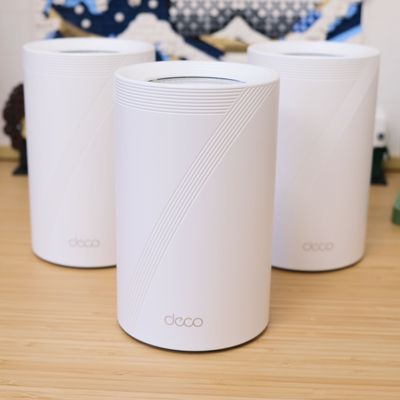
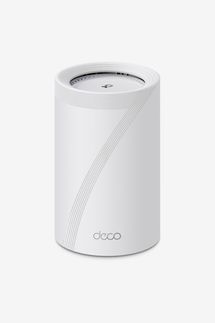
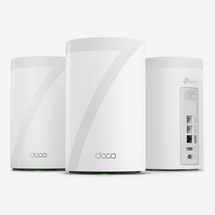
More recently, however, I’ve been testing TP-Link’s Deco 7 Pro BE14000 mesh Wi-Fi 7 system — the same system that’s currently our choice for the best wireless router overall.
The Deco 7 Pro matched the Eero Max 7’s performance, providing the equivalent coverage and speed at a fraction of the price. And other than a few quirks, which I’ll get to below, this system is sure to be a welcome upgrade for anyone in the market for a new Wi-Fi system.

New! You can now save this product for later.
New! You can now save this product for later.
Setup is a breeze
The setup process for the Deco 7 Pro is simple enough for anyone who’s ever installed an Apple TV or similar device, whether you’re using a single router or a full mesh system. After downloading the Deco app, you create a TP-Link account and sign in. Connect the first Deco 7 Pro unit to your modem via an Ethernet cable, connect power, and then follow the prompts in the Deco app. You’ll need to designate your new Wi-Fi network’s name and password during this first step. Once the first node is up and running, you’ll connect the other access points to power, give them names (it’s a good idea to name them by their location in your home), and wait for the Deco app to work its magic. That’s all there is to it.
The hardest part of the setup process is finding a good spot for each access point. I spent maybe ten minutes from unboxing to having a Deco-powered Wi-Fi network beaming throughout my home and office from all three access points.
Easy management
Managing a Wi-Fi network can be intimidating and feel overly complicated for even the most tech-savvy of users. What I like about the Deco app is that it can be as simple or as complex as you want it to be. From the main screen of the app, you can see your network name, the status of every access point that’s part of your network, the number of devices connected to your network, and if there’s any current network activity, and you can even run a speed test.
I’d wager for most, that’s more than enough information. But if you want more performance information or control, that’s there at a glance too. In the settings portion of the app, you can view a list of every device connected to your network and fine-tune which access point(s) it can connect to (super helpful for stationary smart-home devices you don’t want trying to connect to an access point on the opposite side of the house). You can create a guest network, create an IoT network dedicated to your smart-home gadgets, or even select which channels a specific Wi-Fi frequency uses on your network — helpful if you have a lot of interference in your area.
But you don’t have to bother with any of that, and I didn’t. I took advantage of the “Network Optimization” option that analyzes your home network and makes suggestions on how to get the best performance from it, including adjusting channels for interference on specific frequencies. I’m not certain I noticed any difference in performance or speed after using it, but I can tell you from past experience if there’s a lot of interference on a frequency, you’ll experience routine issues.
Not every Wi-Fi system or companion app is designed to be as simple or complex as you want it. TP-Link does a good job of walking that line.
Flexible enough to suit any space
You can use a single Deco as a stand-alone router (one Deco 7 Pro covers 3,100 square feet, enough to cover many typical homes) or use several to create a mesh network, ensuring that your home is covered in Wi-Fi even if you need to blanket a large area in Wi-Fi.
During my time testing, I set up a single node in my office to test its stand-alone capabilities and later set up all three nodes to test it out as a mesh network.
Any time I make changes to the Wi-Fi, it’s almost a given that someone in my family will experience issues with one or more of their devices and I’ll have to spend some time troubleshooting. However, after switching my network over to the Deco 7 Pro, I didn’t hear a single peep. Everything in our house, with the sole exception of our Tesla Universal Wall Connector (which had trouble connecting for reasons I and Tesla support have not been able to figure out), seamlessly connected to the new network and kept right on working.
At any given time, my network has between 60 and 70 devices connected. The types of devices I have run the complete spectrum of tech — smart lights and locks, security cameras, laptops, desktops, phones, tablets, watches — I could go on, but I’ll spare you. At night, we typically have one or two gaming PCs playing whatever the latest title is, along with a couple Apple TVs streaming away, and all of us using our phones for browsing social media and FaceTime calls. Every night is a stress test of any Wi-Fi network.
But not once over the course of the last month did the Deco 7 Pro slow down or hit any snags. It was able to keep up with our wireless demands and do so in more places throughout our home and around our property than with my existing Eero system. Heck, I even get full, usable signal about 60 feet in front of my home, while with my previous setup, even when my phone showed I was connected to my network, I wasn’t able to actually do anything.
Subscription fatigue
The one downside of the Deco 7 Pro is that, as with most routers these days, you’ll need to pay a subscription fee to get access to advanced parental controls or security features.
Out of the box, the Deco 7 Pro has basic parental controls that allow you to limit when a device can connect to the internet and which websites a device is blocked from or allow to access, as well as set a bedtime, with specific hours devices can’t access the internet at all. The system also has basic security features, which include new device alerts and security scans of your router and wireless network.
These features are pretty basic. You can’t, for instance, limit time in a specific app or set an internet schedule for the weekend, and beyond knowing when rogue users might be trying to access your network, you can’t get any real insight into what they are doing. If you want more from either service, you’ll need to sign up for one or more of TP-Link’s subscription plans.
“Advanced Parental Controls” costs $30 per year or $4 per month and gives you access to tools like filtered browsing (SafeSearch), the ability to restrict YouTube channels or videos, and detailed reports of your child’s internet habits.
“Security Plus” adds features like IoT device protection and the ability to block malicious websites for $60 a year or $6.49 a month. There’s another plan, “Total Security Package,” that’s $130 a year and adds even more features.
In comparison, an Eero Plus subscription service costs $100 a year and includes similar parental controls and security features. The advantage to TP-Link’s à la carte subscription plan is that you can sign up only for what you want to pay for, whereas with Eero Plus, it’s all or nothing.
If you want a Wi-Fi system that forgoes any sort of subscription, your options are limited to a router from Asus (that company’s networking products are subscription-free) or dedicated security hardware like the Firewalla AP7.
A mesh system that delivers
All that said, the Deco 7 Pro has delivered on all of its promises over the last month. It’s provided a consistent, reliable, and fast Wi-Fi network that’s blanketed my home (and probably some of my neighbors’) and has earned its spot as our top pick for the best Wi-Fi router.
More From The Strategist
- Hark, the Advent Calendars Arrived (Very) Early This Year
- The Best Things Strategist Editors Have Bought This Year (So Far)
- 63 Things You Should Never Buy Full Price
- The Strategist Fall 100
The Strategist is designed to surface useful, expert recommendations for things to buy across the vast e-commerce landscape. Every product is independently selected by our team of editors, whom you can read about here. We update links when possible, but note that deals can expire and all prices are subject to change.