Just Buy a Logitech Wireless Mouse — These Are My Favorites

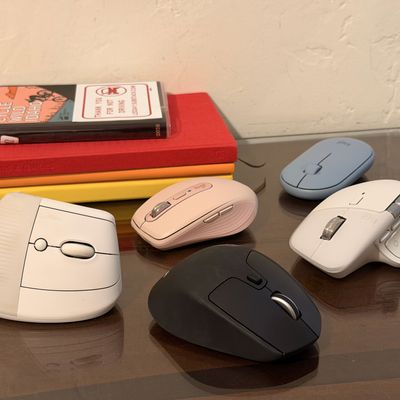
Wireless mice have been a part of my daily life since I started working remotely in 2018. I’ve tried cheap models, travel-friendly options, and fancy mice packed with features. Through them all, I always return to Logitech’s mice. They’re consistently well built, feel comfortable to hold for long stretches of time, and last forever. Over the past ten years, I haven’t had a single Logitech mouse fail me.
I like the premium mice in Logitech’s MX Master series thanks to their balance of ergonomics, tasteful design, accuracy, and customization — but they’re pricey. Thankfully, the company has plenty of affordable options, none of which feel cheap or fragile. And while all of Logitech’s mice are meant to be ergonomic, there are also models built specifically to be as ergo-friendly as possible. Here are my favorites.
The best wireless mouse for most people
New! You can now save this product for later.
Logitech MX Master 4
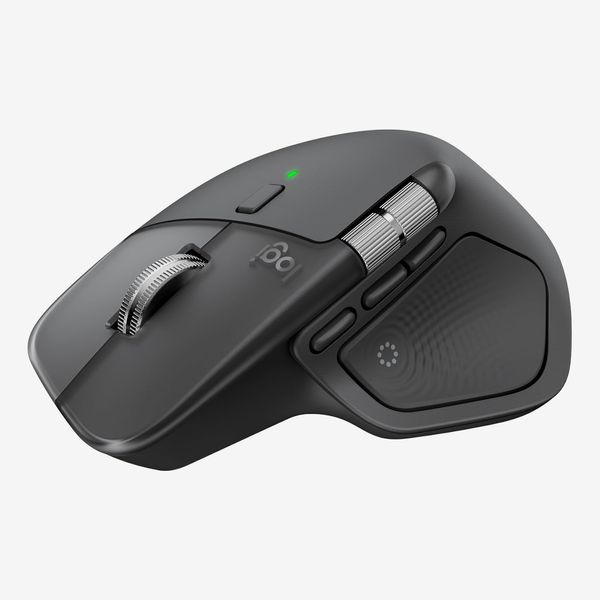
For the past six years, I’ve used some variation of Logitech’s MX Master series as my main mouse while working at my desk. The latest version, which came out late last year, is the company’s most comfortable and customizable to date. Its large, contoured shape allows you to rest your hand in a fairly neutral position that doesn’t cause strain, even during long periods of usage. Those with small hands may prefer a smaller mouse, but the MX Master 4’s extra room is well used: It has six customizable buttons, all with multiple settings, that allow you to have more control over your computer than you get with most mice.
The MX Master’s scroll wheel — which feels satisfying enough to be a worthy fidget toy — can be fine-tuned in Logitech’s Options app to have as much or as little resistance as you’d like. You also get more control over the speed of the Master’s scrolling than your computer’s settings app allows for on its own. Right below that wheel is a button that, by default, changes between scroll-wheel functions but can be programmed to do other things like take a screenshot or open an application of your choice.
On the left side of the MX Master, there’s a horizontal scroll wheel that’s useful for scrolling horizontally in spreadsheets or web pages but can do far more. I split most of my work between a web browser and a tab-based notes app, so I’ve configured my wheel to let me quickly switch between tabs. It’s way faster than hitting Command-Tab, and I miss it every time I’m away from my desk. If that’s not appealing to you, it can also be set to adjust your computer’s volume or brightness, zoom in or out of a web page or photo, switch between apps, or trigger a keyboard shortcut.
Just below that is a “gesture” button. You hold it down and move your mouse in a specific direction to trigger designated functions. There are five preset modes, including one to control media playback — click to play/pause, up or down for volume, and left or right to skip tracks — and a few to navigate between apps and windows. Next to that button are two buttons that serve as forward and back buttons for web pages but can also be set to over 40 other functions as well. For instance, you could set the top button to copy text and the bottom to paste, so you can handle text without even having to touch your keyboard.
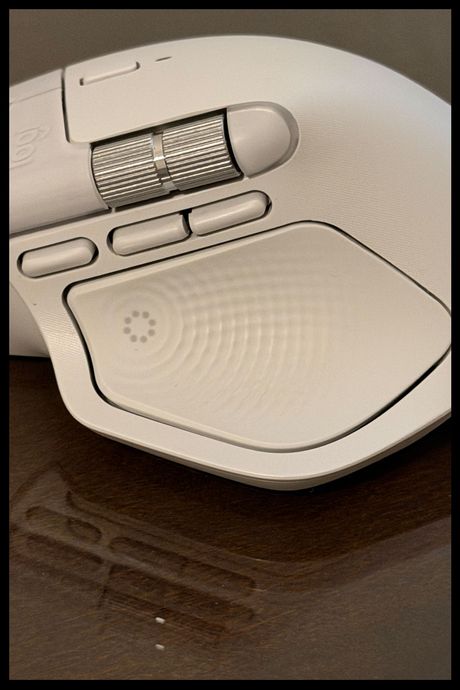
Finally, the MX Master has a large thumb rest area that doubles as a button with haptic feedback similar to that of a MacBook’s trackpad. Like almost every other button and wheel on this mouse, you can set it to do nearly anything you want, but it’s best used to open Logitech’s Action Ring. Whenever you press the button, a ring with up to eight shortcuts pops up. There are over 70 actions and shortcuts to choose from, including adjusting the volume or brightness of your computer, opening specific files or folders, or even triggering keyboard shortcuts. While that can seem overwhelming, it doesn’t take long to find the options that best suit your workflow, and you’ll be grateful for being able to do things like take a screenshot of your current app without lifting your hand off your mouse.
As nice as all that is, though, it does require you to keep Logitech’s Options app installed. Without it you can’t adjust the sensitivity of the mouse, nor can you change the functions of any of the MX Master’s buttons. It’s a small price to pay for the abundance of features the app comes with, but it’s worth noting if you’re concerned about your computer’s performance when running too many apps at once. So far, I haven’t noticed any issues on either my M4 Mac Mini or the MacBook Neo I’ve been testing.
The MX Master comes in two versions, a standard and a Mac-friendly version. They function the same, but unlike the standard option, the Mac version doesn’t come with a USB-A dongle, so it can only connect over Bluetooth. The mouse can pair to up to three devices and has a button on the bottom that allows you to quickly switch between each computer. The battery is rechargeable, and can last up to two months on a charge.
A (less expensive) wireless mouse for most people
New! You can now save this product for later.
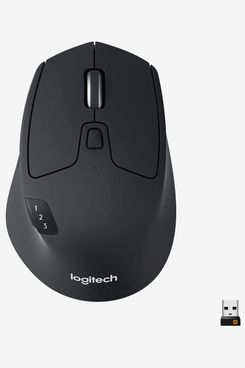
Logitech’s M720 Triathlon doesn’t have as many programmable buttons as the MX Master 4, nor is its thumb rest as large, but it’s almost as comfortable and far more affordable. It’s smaller than the Master, making it a better fit for people with smaller hands.
The Triathlon’s scroll wheel isn’t made of the same premium materials as the MX Master 4 — this one feels fine — but it does have some additional functionality. Tilting the wheel to the left or right can be set to do things like scroll horizontally, adjust your computer’s volume, or switch between virtual desktops. Like the Master, you can also adjust the scrolling sensitivity and toggle smooth scrolling using the Logtechi Options app.
The left side of the Triathlon has forward and back buttons that, just like with the Master, can be reconfigured to do things like adjust volume, switch between apps, or even open a new browser tab. There’s no gesture button, but there is a button to switch between up to three paired devices. While I’m glad that this mouse can pair with up to three computers or tablets, I wish that button were on the bottom of the mouse as with the Master 4.
The Triathlon doesn’t have a large, indented thumb rest like the Master 4, but it does have a programmable button where you place your thumb, which can be used similarly to the gesture button the Master 4 (the Action Ring isn’t available with this mouse). You can also set it to quickly switch between your two most recent applications, close or resize a window, or even just play/pause media. It’s not as easy to hit as the similarly placed button on the Master, as you have to be more precise with your thumb placement, but it’s handy nonetheless.
Unlike the Master 4 and Anywhere 3S, this mouse isn’t rechargeable. Instead, it uses a single AA battery that Logitech says should last up to two years. It’s easy to replace as the battery lives in a compartment underneath the mouse that also holds a USB-A dongle. If you plug that dongle into a computer’s USB port, you’ll be able to use the mouse without needing to pair over Bluetooth. That said, most computers now have USB-C ports, so I wish the included dongle were USB-C.
A highly customizable portable wireless mouse
New! You can now save this product for later.
Logitech MX Anywhere 3S
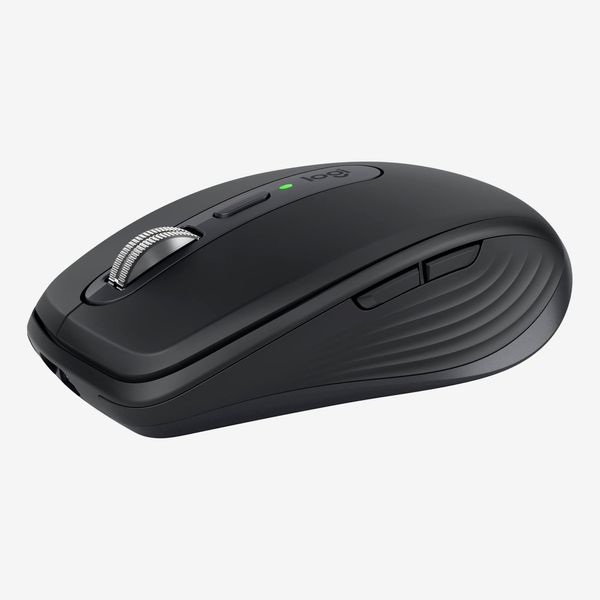
For those who would prefer a compact mouse to a multifunctional one, there’s the MX Anywhere 3S. It’s built just as well as the MX Master 4; has some of the same programmable features, including the Action Ring; and has a more compact design that can easily be tossed in a bag for use on the go.
While the contours of the Master 4 and Triathlon are quite noticeable and give your palm a firm place to rest, the contour of the Anywhere 3S is more subtle. Combined with its shorter body, it’s not as comfortable to use for long periods of time, especially for those with large hands.
The Anywhere 3S has four customizable buttons that work similarly to those on the Master 4. Pressing the scroll wheel can be programmed to do anything from open the Action Ring to activating a keyboard shortcut or redoing an action. The button below the scroll wheel can be programmed to do just as many things, though I like to keep that one set to something I use less frequently as it requires me to move my finger. Meanwhile, the forward and back buttons can be reconfigured just as those on the Master and Triathlon can be.
You can pair the Anywhere with up to three computers or tablets and switch between them using a button on the bottom of the mouse just like with the Master 4. Like the Master, it’s rechargeable and can last up to 70 days on a charge.
A cheaper but less customizable portable wireless mouse
New! You can now save this product for later.
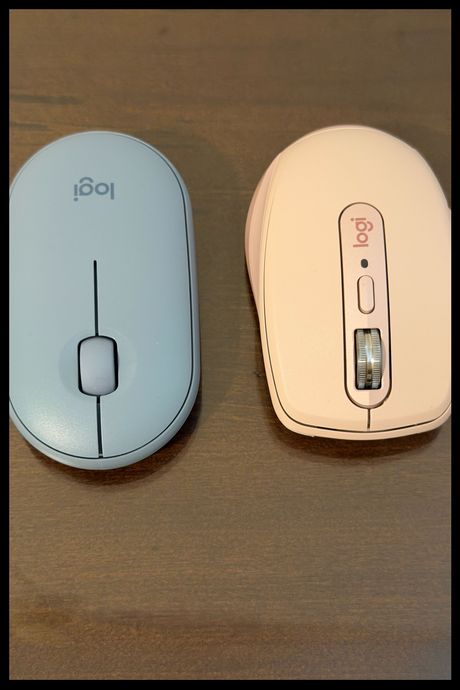
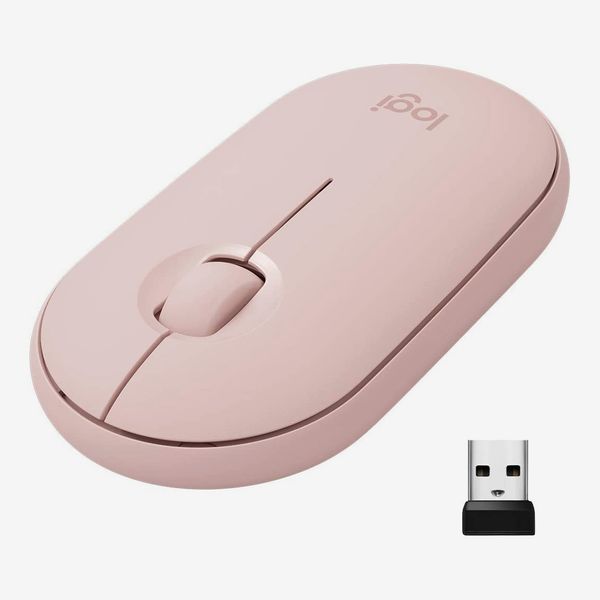
If you want a cheaper portable mouse without any extra features that’ll still work reliably, get the Logitech Pebble. It’s much flatter than the MX Anywhere 3S, giving your hand less of a surface to rest comfortably on, but its small shape is just as suitable for dropping into a backpack or purse. It doesn’t have any extra programmable buttons — you can customize what pressing down on the scroll wheel does in the Options app — but it can still pair with up to three devices over Bluetooth.
The most comfortable ergonomic wireless mouse
New! You can now save this product for later.
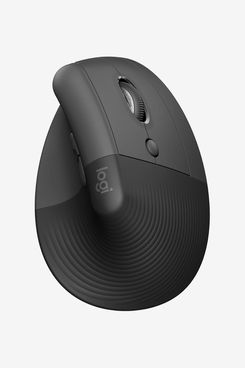
Vertical mice can be more comfortable for those who struggle with wrist pain, as they make it easier to keep your arm in a neutral position while using them. Logitech’s Lift is the most comfortable vertical mouse I’ve used and feels just as premium as the MX Master 4. I’ve been using one as my secondary mouse for nearly three years, and it’s never failed to provide some relief when my wrist is feeling particularly strained.
While the Lift doesn’t have as many programmable buttons as the Master, it does have customizable forward and back buttons as well as a button below the left- and right-click buttons that can be set to do things like change your mouse’s pointer speed (that’s the default) or perform simple actions like copy and paste. That’s not as much customizability as the Master, but it gets impressively close while sporting a much less conventional design.
As with the Triathlon, the Lift is powered by a single AA battery that Logitech says should keep the mouse powered for about two years. It can pair with up to three devices over Bluetooth but also has a USB-A dongle if you’d prefer to connect your mouse that way.
More From The Strategist
- Hark, the Advent Calendars Arrived (Very) Early This Year
- The Best Things Strategist Editors Have Bought This Year (So Far)
- 63 Things You Should Never Buy Full Price
- The Strategist Fall 100
The Strategist is designed to surface useful, expert recommendations for things to buy across the vast e-commerce landscape. Every product is independently selected by our team of editors, whom you can read about here. We update links when possible, but note that deals can expire and all prices are subject to change.