This Digital Calendar Is Worth It


Since becoming a caregiver for a parent last year, my planner has been filled with more appointments and reminders than ever. In addition to everything they have scheduled, I have to keep track of my own obligations. It’s a lot, as any caregiver knows.
Until recently, I managed all of this through a system of paper planners and digital to-do lists. I could always open a book or app and know what needs to be done and get a ping on my phone if I happened to forget. It worked well enough, but to make sure we stayed on top of my parent’s health needs, a lot of time went into messaging everyone to make sure we were all on the same page. Are meds taken care of? When’s the next doctor’s appointment? And which doctor again? It was easy for things to get lost in all the back-and-forth.
But since I put the Skylight Calendar 2 on our kitchen countertop last month, it’s all become much easier.
New! You can now save this product for later.
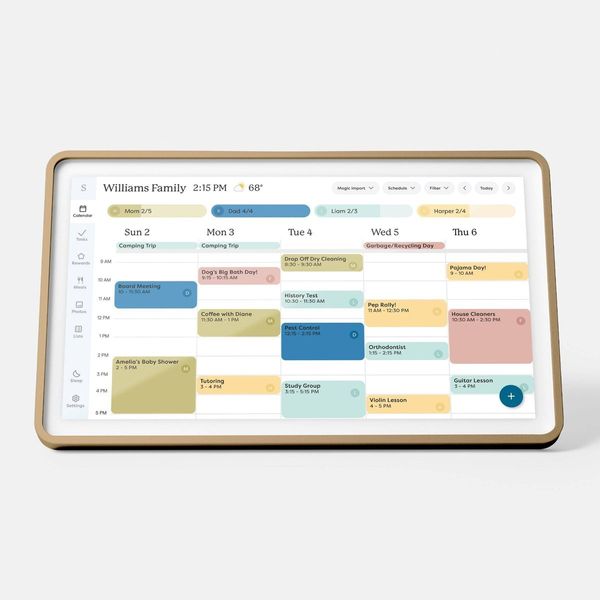
It’s an excellent, big-screened planner …
The 15-inch Calendar 2 has the same understated design as Skylight’s digital picture frame, plus a removable magnetic frame and a faster processor than the original Calendar. Its touch-based interface is simple and intuitive enough for anyone to get the hang of, with a vertical bar of shortcuts on the left-hand side. From there, you can access the Calendar’s various sections, including the calendar, lists, tasks, meal plans, and recipes.
You’ll likely spend most of your time looking at the calendar view. Once you’ve synced all of your and your family’s calendars — Skylight supports Google, iCloud, Outlook, Yahoo, and a few other services — they’ll all be shown on the Calendar’s color-coded planner. Like any good calendar app, you can view your schedule in day, week, or month view. You can also filter out specific calendars, so the screen never gets too cluttered.
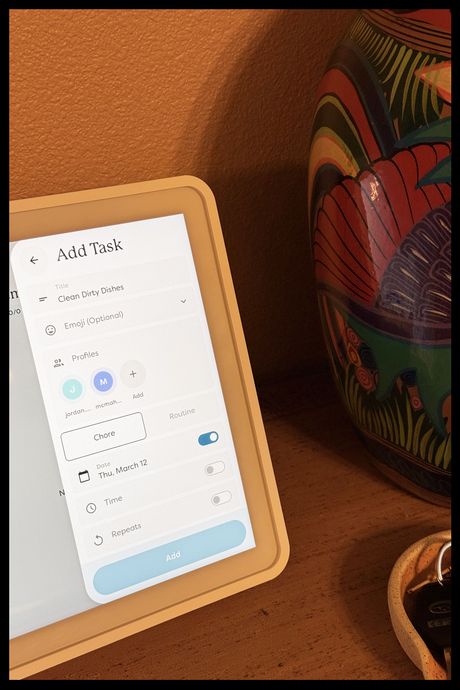
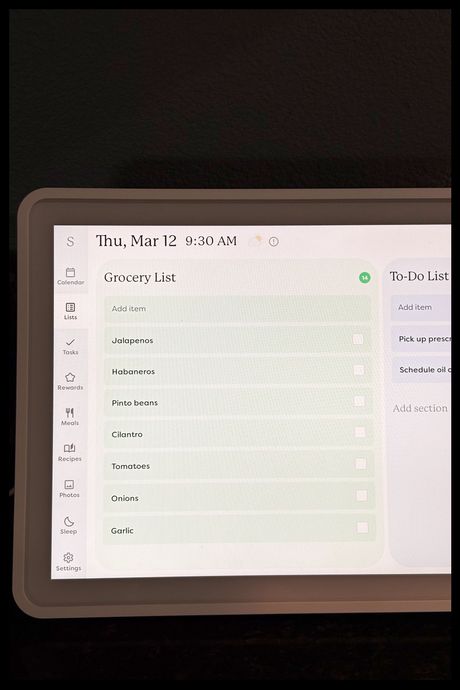
Equally handy is the Calendar’s lists tab, where you can create custom grocery and to-do lists to share with the entire household. By default, there’s one task list and one grocery list, but I’ve created a separate grocery list for each store my family shops at and prefer to use the dedicated tasks tab to make checklists. There, you can create one-off or repeat tasks (labeled “chores” in the app) such as medication administration or taking out the trash, with or without a deadline. The app even lets you assign tasks to specific household members. I do wish, however, that tasks with set times gave you a reminder the same way events do on the calendar. Instead, you have to tap on the tasks tab to see what has and hasn’t been done.
… that can centralize many kinds of household tasks
If you keep the Calendar in your kitchen — you can mount it on the wall or place it on a countertop — the meal and recipe tabs may especially be of use. The recipes section allows you to manually input recipes that you can then view right on the Calendar as you cook. If you pay for the annual Plus plan (more on that below), you can also scan photos of recipes (handwritten or from a cookbook) and save them for later. I tried this using a photo of a soup recipe my grandmother wrote down before she passed. Despite her messy handwriting, Skylight’s software managed to transcribe it all without any errors. Once you’ve saved a recipe, you can tap a button to either add all the ingredients to your grocery list or put it on your calendar for weekly meal planning.

Households with kids will likely also appreciate Skylight’s “rewards” system. When you create a task or chore, you can assign a number of stars to that item so whenever someone completes it, they can exchange their stars for a reward. So you could set the app to reward your kids a star every time they clean up their own dishes. Once they hit, say, ten nights, you could treat them to dinner at their favorite restaurant.
While most of this can be done from right on the Calendar, you can also manage your Calendar from the accompanying app. I prefer this, as it’s easier to type on my phone than it is on the Skylight’s large display. Thankfully, the app is intuitive enough for anyone to use, and it even has some features you can’t access from the Calendar. For instance, you can use Skylight’s Sidekick feature, which lets you take pictures of invitations, lists, or recipes that can automatically be imported into the proper section. There’s even an option to take a photo (or several) of the inside of your fridge, which the app will then use to create a recipe based on what you have on hand. I tried this using four close-up images of my freshly stocked refrigerator, and it suggested I make a cheesy egg and veggie quesadilla — which I did. Not the most complex recipe to whip up, but it was tasty.
Some of the best features require a subscription
Great as that all is, not every feature works right out of the box. Aside from the core calendar and task functionalities, many of the most useful features are locked behind an annual subscription. Without it, you can’t upload pictures for Skylight to turn into events, tasks, or recipes, and the rewards system isn’t available. Most frustratingly, though, is the fact that you can’t use the Calendar as a digital picture frame when it’s in standby mode without the Plus plan.
At $80, it’s not as costly as a Spotify or Netflix subscription, but tacked onto the Calendar 2’s $300 price tag, that adds up after a few years. While I think many of the features are useful enough to justify the subscription, I wish the photo screensaver were accessible to nonsubscribers.
It’s well worth the cost for busy homes
Not everyone needs a large, bright display showcasing their calendar in the living room. If you’re just trying to manage your own workload, a good calendar app and a widget on your home screen will likely do the trick. But if you need to track the schedules and tasks of multiple people in your house, the Skylight Calendar is well equipped to keep everything in order. Its large display ensures everyone can see what’s on the agenda, and its various calendar and task views are powerful enough to adapt to any household’s needs. It’s a bummer that so many of the best features are locked behind a subscription, but even without it, my home’s better for having the Calendar 2 on the counter.
More From The Strategist
- Hark, the Advent Calendars Arrived (Very) Early This Year
- The Best Things Strategist Editors Have Bought This Year (So Far)
- 63 Things You Should Never Buy Full Price
- The Strategist Fall 100
The Strategist is designed to surface useful, expert recommendations for things to buy across the vast e-commerce landscape. Every product is independently selected by our team of editors, whom you can read about here. We update links when possible, but note that deals can expire and all prices are subject to change.